
How to Protect Shopify Product Images | Fewer Saves
Shoppers can save a gallery photo in one click. Set page rules that protect Shopify product images and leave checkout open, then Install KOI on Shopify.
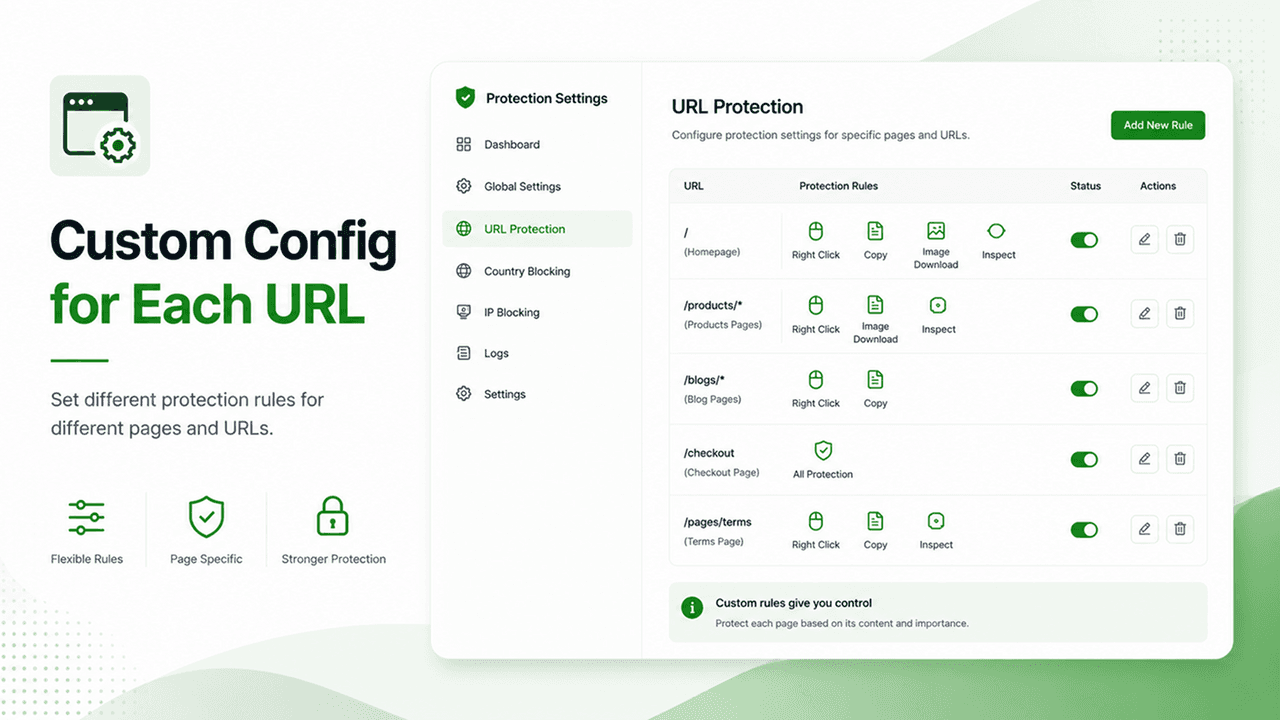
A shopper can open a product page, right-click the gallery, and save the photo in a second. That casual save hands over a picture you paid to shoot. This guide shows store owners how to protect Shopify product images on product and collection pages while cart, checkout, and account stay usable.
You will add a page rule and whitelist your team. The control is a front-end deterrent, not a lock on the file. It is for merchants who want fewer casual copies and a checkout that still works.
Why a gallery photo is easy to save
The photo is already in the browser. A right-click on desktop, or a long-press on a phone, can offer a save command. Dragging the image to the desktop can do the same. Nobody needs Shopify admin, because the image address is part of a page the shopper is allowed to open.
The cost shows up when the photo carries a material, a fit, or a detail from a real shoot. Another site can place that file next to an old price or a description that is not yours. Shoppers then meet the product somewhere else, in worse shape. A storefront control does not replace a takedown or a license.
Put the control on the gallery, not on every URL. Product and collection pages are where the photo is working. Cart, checkout, and account are where the shopper is trying to pay or sign in. That split is how you protect Shopify product images without policing the whole store.
What disable right click can and cannot stop
Disable right click can interrupt the shortcut people use to save a photo or copy a description. KOI can also cover text selection, print shortcuts, and supported inspect shortcuts. What the visitor sees depends on the browser, the device, and accessibility settings. It cannot stop a screenshot, a second camera, or someone who already has the image address.
- Right-click attempts to save the gallery photo
- Casual copying of the product description and other merchandising text
- Dragging the photo off the page
- Print shortcuts and supported inspect shortcuts
- Image download actions the app can intercept in that browser
A screen capture, another phone, or the direct image address can still reproduce the file. Do not write a policy, an ad, or a support reply that says nobody can download the image. That sentence is false. This setup must not make it.
Pair the shortcut block with work the app does not do. Export images at the size the theme needs, add a watermark when the brand can stand it, and publish plain usage terms. Those steps still matter when you protect Shopify product images from a one-click save and nothing more.
That is the whole job of this control. You protect Shopify product images by removing an easy shortcut. You do not remove the picture from the screen.
How to protect Shopify product images with page rules
Keep the deterrent on the URLs that show the photo, and leave the URLs that take payment alone. In the KOI dashboard, URL Protection can attach Right Click and Image Download to a path you choose. A product path can be tight. Cart, checkout, and account stay usable when they are not on that rule.
The listing sample on this screen shows a checkout row with All Protection switched on. Do not copy that row if checkout has to stay open. Read the control names, set the product path, and leave checkout off.

Follow the product row when you protect Shopify product images. Switch off the checkout row in that same sample.
- Install the app from the Shopify App Store and open its dashboard.
- Open URL Protection.
- Add a rule for the product path. The sample uses /products/*. Turn on Right Click and Image Download there.
- Add the collection path the same way if the collection grid shows the same photos.
- Leave cart, checkout, and account paths without those blocks. If All Protection is on for checkout, switch it off.
- Whitelist the IP addresses your team and your agency use. Free includes an unlimited IP whitelist and one country whitelist.
Save the rules, then walk a real purchase on desktop and on a phone. Repeat that walk each time you protect Shopify product images on a new template.
- The product gallery, including the second and third photos
- A variant change that swaps the photo
- Collection grid images, if you added that path
- Cart quantity, order notes, and the checkout form
- Account login
- Keyboard access to add to cart, not only a mouse click
When those checks are what you want on the live theme, Install KOI on Shopify. Run the same list after the rules are saved. This pass should protect Shopify product images on the gallery, and show you if a path rule has spilled onto checkout.
Mistakes that block shoppers instead of casual saves
The usual failure is a rule wider than the gallery. Protection goes on for the whole store, and a cart button, a discount field, or the checkout form starts to feel broken. The shopper came to buy, not to save a photo. Narrow the path you use to protect Shopify product images.
- Copying the sample checkout row and leaving All Protection on
- Forgetting the collection grid, so only the product page is covered
- Blocking the office IP, then blaming the theme when staff lose a normal browser menu
- Blocking a country where customers, or the agency, actually are
- Testing the homepage only, and never a variant photo, the cart, or a phone
Whitelist the team before you tighten the gallery. An IP whitelist and a country whitelist exist so staff and an agency can still work. Customers who are ready to pay should not need one. A storewide switch does less to protect Shopify product images than that split, and it can cost the order.
Free and Premium limits to read before you launch
Free and Premium are not the same allowance. On Free, the app includes disable right click, shortcut and print controls, image and video protection, and content protection. You can block up to 10 IP addresses and up to 3 countries. The IP whitelist is unlimited on Free, and one country can be whitelisted.
Premium is $2.99 a month or $19.99 a year, with a 14-day trial. The yearly price is listed as 44% under twelve months at the monthly rate. Premium adds unlimited IP blocking, unlimited geo blocking, and an unlimited IP and geo whitelist.
Stay on Free for a short block list and a staff whitelist. Move to Premium when you must block many countries or many IP addresses.
Choose Premium when the block list, not the gallery, is why you protect Shopify product images in more countries than Free allows. Page rules only pick URLs. They do not make every cap unlimited. Read the IP and country numbers above before you protect Shopify product images across a large catalog.
Frequently asked questions
These answers stay on one limit. You can make a casual save harder on the gallery, and you cannot promise that the file is locked. Read the plan caps before a country block or an IP block applies to visitors who are not on your team.
Does disable right click stop every download of a product image?
No. It can discourage the save shortcut, a drag off the page, and some download actions the browser shows. A screenshot, another device, or the direct image address can still capture the file. Keep a watermark, a sensible export size, and a report path, and do not tell customers the photo cannot be downloaded.
Which pages should I tighten, and which should stay open?
Tighten product and collection URLs, because that is where the gallery sits. Leave cart, checkout, and account open so a shopper can change a quantity, pay, and sign in. In URL Protection, keep those paths off the image rules even if a sample shows All Protection on checkout. Whitelist staff IPs so the team is not treated as a stranger while you protect Shopify product images.
What does Free include, and what does Premium add?
Free includes disable right click, shortcut and print controls, image and video protection, and content protection. It also includes up to 10 blocked IP addresses, an unlimited IP whitelist, up to 3 blocked countries, and one whitelist country. Premium is $2.99 a month or $19.99 a year, with a 14-day trial. It removes those caps with unlimited IP blocking, unlimited geo blocking, and an unlimited IP and geo whitelist.
Will zoom, variant photos, or the cart break?
They can, if the rule is wider than the gallery or if nobody tests a real product. Open the gallery, swap a variant, and add the product to the cart on a computer and a phone. Type in the checkout fields and reach add to cart from the keyboard. If a control blocks one of those, remove that path so the work to protect Shopify product images does not freeze the cart.
Start with the gallery, then place a test order
Make a casual gallery save less convenient, and keep buying possible. Set URL Protection on the product path and, if the grid shows the same photos, on the collection path. Leave cart, checkout, and account off those blocks. Whitelist your team, then place one test order on a phone.
The setup is working when the shortcut is harder and checkout still feels normal. Free still stops at 10 blocked IP addresses, 3 blocked countries, and one whitelist country. When you want this on the live theme, Install KOI on Shopify and keep the same test list. See KOI Disable Right Click on Yield Tech for the product summary next to this guide to protect Shopify product images.