
Protect Shopify Product Pages Without Blocking Checkout
Turn on KOI Disable Right Click & NoSpy where original product photos live, leave cart and checkout easy to use, and whitelist your team so protection stays out of the way.
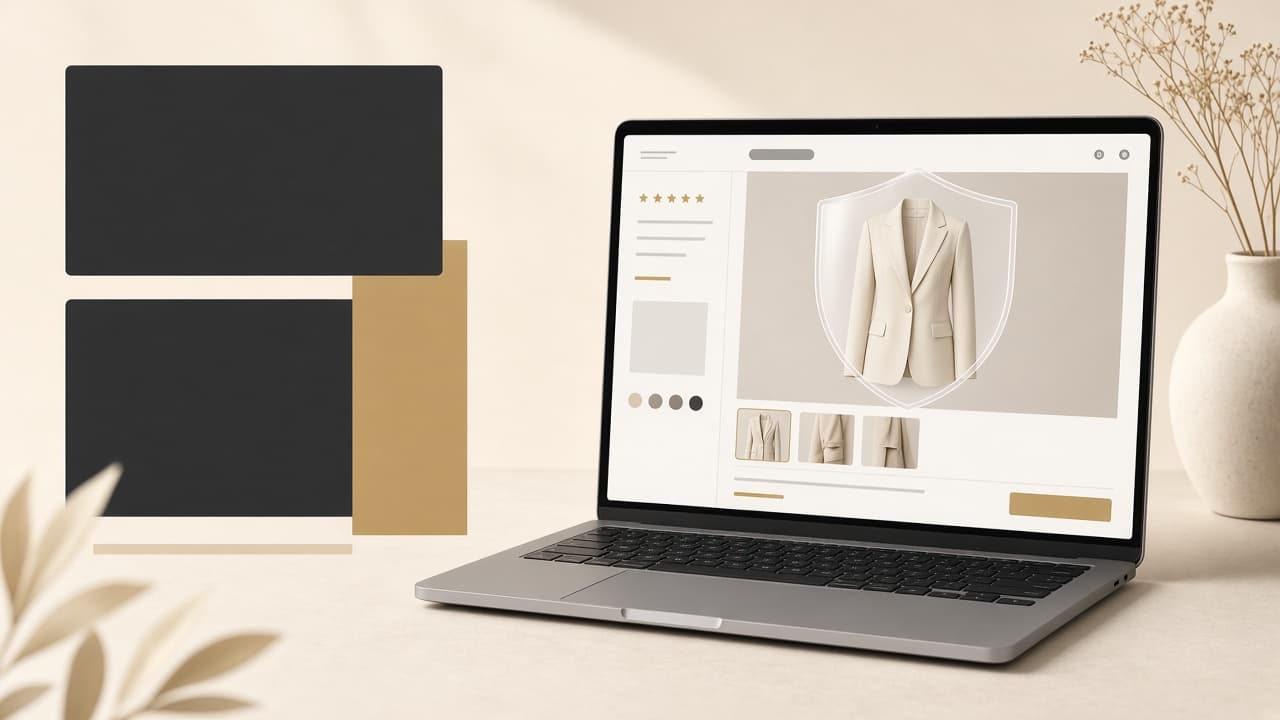
A storefront does not need the same protection on every URL. Product photos, lookbooks, and original descriptions are the assets competitors try to save. Cart, search, and account pages are where shoppers still need to select text, open menus, and finish an order. KOI Disable Right Click & NoSpy lets you put the stricter rules on the pages that hold that work.
Protect the pages that hold original work
Start with product pages and collection pages. Those are the places a visitor uses the context menu to save a photo, or highlights a description to paste it somewhere else. The app can discourage right-click saving, text selection, common print shortcuts, and supported inspection shortcuts. It can also apply screenshot deterrence in browsers that support it.
Fashion, jewelry, and beauty stores feel this first, because the photograph is part of the product. A copied image on another site can show the wrong price or an old variant. Blocking the easy shortcut does not replace a takedown request, but it removes the one-click path.
Turn on right-click and image-save protection for product and collection templates.
Block text selection on pages where the copy itself is the asset, such as a buying guide or a lookbook.
Leave blog comments, help pages, and policy pages easier to use if customers need to select an order number or a return address.
Leave checkout usable
Checkout, cart, and account pages are a poor place for a blanket block. Shoppers copy a discount code, select an address, and use the keyboard to move through the form. A rule that fights those actions will show up as abandoned carts, not as saved photos.
Use page rules so protection follows the template, not the whole domain. Product and collection URLs can stay strict. Cart, search, and customer-account URLs can stay open. You set this in the app dashboard. The theme does not need a code edit.
Whitelist the people who build the store
Your own team still needs the context menu. A designer checking a gallery, an agency reviewing a theme, and support staff reproducing a bug all use inspect and right-click. IP and country allow rules keep those visitors on the normal storefront while everyone else gets the protection rules.
Add the office or VPN addresses you actually use, and allow the countries where staff work. Those controls are included with every other protection feature at no charge, with no usage cap.
Test the path a shopper takes
After you publish the settings, walk a product on desktop and on a phone. Open the gallery, change a variant, add the item to the cart, and continue toward checkout. Try a keyboard-only pass on the product page. If a control you rely on stops working, narrow the page rule instead of turning the app off.
The app is meant to stay light. If a page feels stuck, check whether a protection shortcut overlaps a theme shortcut, then limit that rule to the templates that need it.
What this still cannot stop
Anything shown in a browser can still be captured. A second phone, a screenshot tool, or a direct image URL can get around a context-menu block. Treat KOI Disable Right Click & NoSpy as a deterrent against casual copying. Pair it with exports sized for the storefront, a visible watermark where it fits the brand, and a simple process for reporting reuse.
If you want the rules on the pages that sell, and not on the pages that check out, set them up in KOI Disable Right Click & NoSpy.